
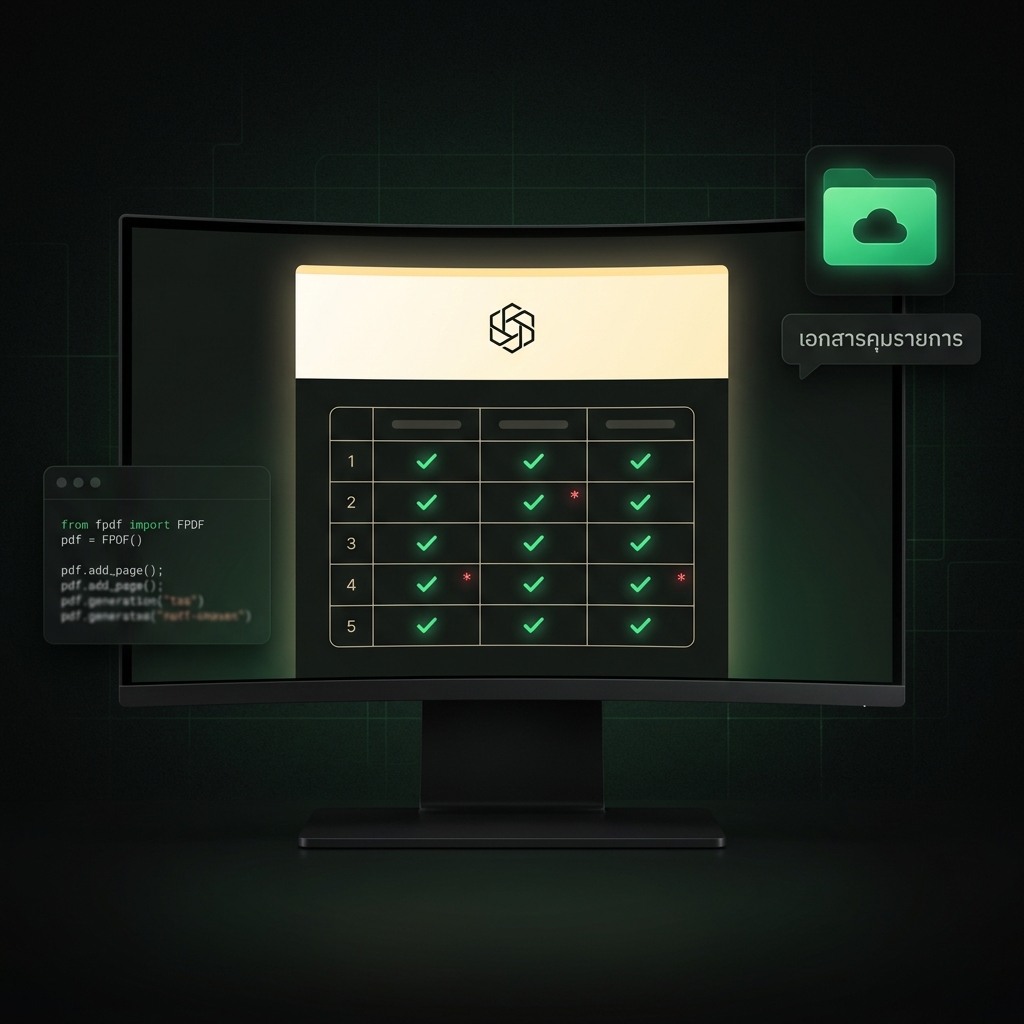
If you've ever sent a folder of monthly receipts to a bookkeeper, you probably know the feeling — they want a specific "index page" sitting on top of the binder. Mine does. It's a one-page PDF with our logo, five rows for the kinds of documents in the folder, three checkbox columns next to each row, red asterisks on rows 3 and 4, and a red footnote at the bottom. Same template every month. Same pattern of ticks every month.
I'd been doing it by hand in Word for years. About 20 minutes a month — open last month's file, change the date, save as PDF, upload to the right Drive folder, repeat for the second company.
This month I finally asked my AI to write a skill that does the whole thing for me. One evening of work, one round of correction from a screenshot, and it now runs on autopilot — for both companies, every month, automatically uploaded to Drive, with a Telegram ping when it's done.
The Annoying Part Wasn't the Doing — It Was the Remembering
I have two companies — INC (the parent of Newton, my Facebook pages, and my KDP books) and SD (a software business that builds web/apps for restaurant owners). Both go to the same accounting firm. Both want the same cover sheet.
The 20 minutes a month was never really the problem. The problem was the cognitive overhead — every month I had to remember:
- Where the template lives
- Which Drive folder this month's binder goes in
- Which fields change vs which stay the same
- How the asterisks and the red footer line are formatted
- That I have to do it for INC and SD
By the time I'd loaded all of that back into my head, I'd already burned 15 minutes. The actual editing was 5.
This is the trap of "tasks I only do once a month." They feel cheap so you never automate them, but the re-onboarding cost is real and it never goes down.
The Tricky Bits — Thai Fonts, Check Glyphs, and Exact Layout
The bookkeeper's template is fully in Thai. So whatever I built had to render Thai correctly in a PDF — which sounds simple but isn't, because most free fonts that ReportLab plays nicely with don't have great Thai support, and most Thai fonts are missing the basic Latin glyphs you'd want for things like checkmarks and ticks.
My AI made these calls before I could even ask:
- Sarabun from Google Fonts for the body — clean, readable, free, full Thai coverage.
- DejaVu as a fallback specifically for the ✓ glyph (Sarabun doesn't have one).
- A cream-yellow header band to match the original template.
- Red asterisks on rows 3 and 4 (those are statement rows the firm wants every month, regardless).
- Red italic footer at the bottom for the standing reminder note.
I sent it a photo of last month's filled-in cover sheet and said "make it look as close to this as you can, save the script at /root/skills/monthly-accounting/cover_sheet.py."
One round later — first render. Header looked right, table aligned, fonts loaded, ticks rendered. Almost done.
Almost — Except Every Drive Cell Was Ticked
The check pattern across the 5 rows × 3 columns isn't arbitrary. For my businesses it's always the same:
G N G G N N G G N N
That reads as: row 1 ticks "Google Drive" only, row 2 ticks "None", rows 3 and 4 tick "Drive" and "None", row 5 ticks "None." It's a real-world pattern that reflects the fact that my receipts live in Drive, my bank statements live in Drive but only some of them, and so on.
The first render had checkmarks in the Drive column for every single row. Default behavior, no actual logic.
Now — I could have written that out in words. "Row 1 ticks column 1 only. Row 2 ticks column 3 only. Row 3 ticks columns 1 and 3. Row 4..." It would have taken me three minutes to type and probably another two for my AI to parse correctly without a misread.
Instead I screenshotted the wrong render, drew the correct pattern over the top in red ink, and dropped the image back into chat. "Should look like this."
One reply later, my AI had hardcoded a CHECKS dict at the top of the script — five rows, three booleans each — with a comment explaining what G/O/N stand for. Re-rendered. Pattern correct. Done.
The lesson stuck: when you're correcting an AI on a visual layout, send the visual. Words add a translation step. An annotated image cuts through it.
One Template, Two Companies — Because They Are the Same Kind of Business
My AI stumbled briefly here. It had an old memory note saying SD was a restaurant business — which would have meant a different document mix and a different default check pattern. It almost generated two different templates.
I corrected it: "SD isn't a restaurant. It's a software company that builds web/apps for restaurant owners. Same kind of business as INC. Same template, just a different Drive folder."
It updated the memory file in the same turn. The skill now generates both PDFs from a single template definition with two company configs — name, logo path, and target Drive folder differ; everything else is shared.
That memory correction is the part I value most about a private AI agent. With a regular chatbot, I'd have to re-explain "SD is a software company" every single conversation, every single month, forever. With an AI agent that has a persistent shared brain, I correct it once and it's right from then on.
The Final Flow — From Click to Drive in Under a Minute
The shipped skill does this end to end:
- Generates two PDFs — one for INC, one for SD — with the right month, the right pattern, and the right footer text.
- Names them in the format my accountant expects (
CoverSheet_INC_Apr2026.pdf,CoverSheet_SD_Apr2026.pdf). - Uploads each to its company's monthly Drive folder via the Drive API.
- Sends a Telegram message: "Cover sheets for April done."
I open Drive, the files are there, named correctly, in the right folders, ready to forward to my accounting firm. Twenty minutes a month becomes zero.
It Plugs Into the Whole Accounting Pipeline
The cover sheet is not a standalone feature. It's step 7 of a longer pipeline my AI has been building out for me, piece by piece, over the last few months — the same project I've been calling Accy on this blog.
- Pull receipts from Gmail automatically — no more "open Gmail, search invoice, download."
- Rename each receipt to the format my accountant wants (
Vendor - DDMMYY). - Sort each receipt into the right Drive folder by company and month.
- Parse my credit card PDF statements and load the line items into Accy.
- Auto-categorize each transaction (advertising, hosting, software, etc.).
- Match each receipt against the matching line item in the statement.
- Generate the cover sheet PDF for each month — this post.
End to end, I haven't touched Word. I haven't touched Excel. I haven't touched Drive by hand. The accountant gets a clean, complete monthly package without me lifting a finger.
And when something goes wrong — like the time I accidentally wiped a whole month of records — my AI handles the recovery too.
Three Things I Learned This Week
1. When correcting an AI on a visual layout, send the image.
Don't describe ticks in prose. Don't list cell coordinates. Screenshot, annotate, send. The feedback loop is dramatically faster — single round vs three or four — and the result is more accurate. This generalizes: whenever the underlying object you're discussing is visual, the natural language for the conversation is also visual.
2. Once-a-month tasks are absolutely worth automating.
Most "should I automate this?" calculators only count execution time. They miss the much bigger cost — the re-onboarding tax every time you come back to the task. A 5-minute task you do once a month costs you 15 minutes of remembering, every single month. Automate it once, save 20 minutes and the mental load forever.
3. Persistent memory turns "corrections" into "permanent fixes."
The SD-isn't-a-restaurant correction took me one sentence. With a chatbot that forgets after every session, that's a sentence I'd type every month for the rest of my life. With an AI agent that has its own memory file, that's a sentence I will never type again.
This Is What "Having an AI Agent" Means
The Tim that wrote this skill for me isn't a ChatGPT subscription with a cute name. Tim is a real AI agent on my own server:
- It has my Google Drive credentials — so it could finish the upload step itself, not hand me a script and say "now you run this."
- It has shell access to
/root/skills/— so it could create the new file and commit it without me telling it where things go. - It has a memory of my businesses — what INC and SD are, who my accountant is, where each company's binders live.
- It has Telegram set up — so it can ping me when long-running jobs finish.
- And it has Git — so when this skill runs from a different server next month, it'll already have it.
None of this is possible from a browser tab. It only works because the AI has the same access I do — to my filesystem, my APIs, my Drive, my notifications.
This is the difference between "using AI" — opening ChatGPT, asking a question, copy-pasting the result somewhere — and having an AI work for you. The first is a tool. The second is a teammate.
Try Having Your Own AI Agent
Newton is the productized version of what I have. You sign up, and 10 minutes later you have your own AI agent on your own server — with a chat UI, persistent memory, the ability to write skills, and access to whatever APIs and accounts you give it. Same engine that wrote this skill for me. Same engine that's been building dashboards for me and working through the night on my behalf for months.
Free for 7 days at newton.incomeinclick.com. No setup on your end — provisioning takes 2 minutes from card-on-file to logging into the chat. Cancel any time during the trial.
If next month I open Drive and see this month's cover sheets sitting in the right folders without me having lifted a finger, I'll consider that a small win — and the accountant will never know it was the AI.
— Pond